
git to github on pythonanywhere
git or github and on where?
After developing on pythonanywhere for a while, I found that information is somewhat lacking in many areas. One of this is how to manage your development workflow. For many developers, they develop their programs on vscode or other IDEs (Integrated Development Environment) and perform git local, then push their code to store on github repository, and from there, to the hosting of their choice; VPS (Virtual Private Server), or Serverless.
But for casual developer like me, I prefer to work online, either on github codespace, or Jupyter Notebook, or, for flask/python development, on pythonanywhere. When I’m satisfied with my code, I will commit to a local git repo, then push to github, either for storage, or in case I want to switch to working with VScode local.
So my workflow is:
- Develop on pythonanywhere
- git commit to local repo
- git push to github
Well, that seems simple enough. But when I tried to do just that, it didn’t work! And going through pythonanywhere blogs, I only found this page, with very little explanation for my case. Hence this blog!
✨ Why pythonanywhere?
After checking out and testing a number of options such as DigitalOcean, render, and heroku. All are good options with render still offering free tier. Pythonanywhere also offers free tier for testing and I’ve sinced moved to their paid account. The deciding factor for me is the ability to work online from any PC/laptop or even ipad that has access to a decent browser!
🚧 Let’s get started with git
So, for the workflow I described above, I will start with git.
So, to create Git locally, let’s set git config
- Open bash terminal
- Go to your desired project folder; /yourname/yourproject/
- Check git config
git config --list
git config --list --show-origin- Set git config to your name and email
git config --global user.name "Your Name"
git config --global user.email "your.email@example.com"- Initialize local repository on your computer,
git init- To track and save changes to your local git repo
git add filename.txt- This will stage your changes. If you don’t want to add file one-by-one, you can
git add .- After you’re done adding the files, you need to commit your changes
git commit -m "This is my first commit"- Check status of your commit, type:
git status- You can also check your git main and branch and change from master(default) to main(most people prefer this!)
git branch -vv
git branch -m main
🔍 Create your empty github repo!
Now you need to headover to github.com, then create your account. I will skip this part since you can find instructions anywhere.
Next, create your empty github repo. Use the default value (No README, .gitignore, or license), and for visibility, either ‘Public’ or ‘Private’ is fine.
Take note of your github repo address, ‘https://github.com/yourname/project.git’, you will need it later.
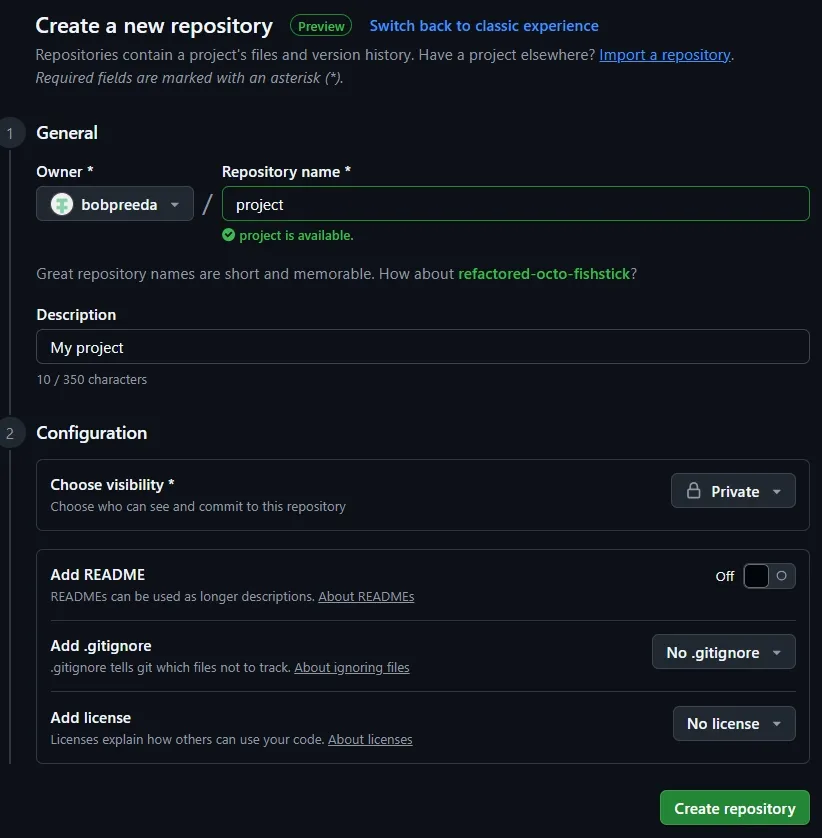
🛠️ Now the hard part!
Now head back to pythonanywhere, open bash
- check remote and add your new project repo to your remote
git remote -v

git remote add origin https://github.com/yourname/project.git- or if you’ve already added remote previously and would like to change the url
git remote set-url origin https://github.com/yourname/project.gitBut if you push your local git repo to your new github repo now, you will encounter error! This is because github no longer support password-based authentication for git operations over HTTPS. So it’s time to switch over to SSH authentication!
So, open bash on your pythonanywhere again and:
- head to your local repo folder
- Check status of git repo to confirm:
git status- Generate SSH with the command below, just keep hitting enter for the rest of the prompts.
ls ~/.ssh
ssh-keygen -t ed25519 -c "your.email@example.com"
The first command checks whether your SSH key exists. The second command will generate new SSH keys with the id: ed25519. You can use any id you like.
Then you will get a file called id_ed25519.pub in the directory specify above (or you can use other id, that’s up to you). Just open the file and you will see the SSH Keys. Select the text and copy to clipboard.
Next head back to github -> Settings -> Access -> SSH and GPG keys
Here you will find the page to add new SSH key.
- Click create ‘New SSH key’
- Copy and paste the key that you copy to clipboard from previous step
- Click ‘Add SSH key’
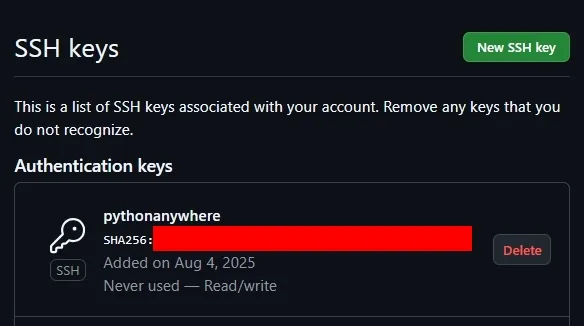
Now head back to bash on python anywhere then type below command:
ssh -T git@github.comThis initiates a secure shell connection, and the -T tells SSH not to start interactive shell.
You should recieve a message saying that ‘You’ve successfully authenticated, but GitHub does not provide shell access’. Ignore this.
Now, from your project folder, try:
git push origin mainAnd, congratulations!, your project git repo should start pushing to github as expected!
✨ What I Learned
There are lots of information on the internet, but, most of the time, due to the complexity of software development, their setup and solutions are usually different from yours. A lot of trial-and-errors are still important and needed, even with the help of AI!
🔗 Connect
I’m building Prevalis Strategies as a technical + strategic consulting venture. Follow the journey, learn with me, or drop suggestions or questions!
Domain: https://prevalis.ai
Email: [info@prevalis.ai]
Built & maintained by: prevalis.ai ✨