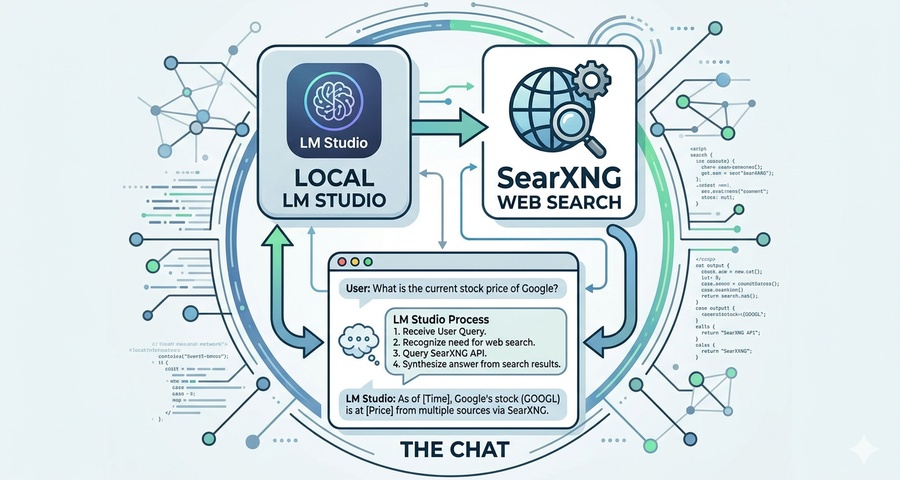
Adding Websearch MCP to LM Studio
Background on why I need websearch capabilities for my llm models:
Lately I have been using llm for news sentiment analysis quite a lot, so when a friend suggested to me that I should add websearch capability to my local llm, I decided to give it a try.
When a model is trained, there is a knowledge cut-off, meaning that the data that it used to build its knowledge only goes up to a certain point. That’s why llm models that can search the web to fill those knowledge gaps, can be of more use to you.
My setup:
Right now on my development PC, I have Qwen3 llm model running in LM Studio providing local server for use in my news analysis python script.
To add Websearch capability to the llm model, after some research, I decided to self-host a private instance of SearXNG, a free internet metasearch engine which aggregates results from various search services, with the added bonus of no user tracking and profiling!
Project Summary: Private Web Search for Local LLM
SearXNG (The Search Engine):
Hosted locally via Docker Desktop to aggregate search results from multiple engines privately.
JSON API Configuration:
Modified the SearXNG settings.yml to enable JSON output, allowing the llm to “read” search data.
Node.js Bridge:
Installed Node.js on Windows to run the Model Context Protocol (MCP) server.
LM Studio Integration:
Configured the mcp.json file in LM Studio to launch the mcp-searxng tool, enabling “Search” as a native capability for models.
Result:
My local llm can now answer questions about current events, fetch live data, and cite sources while keeping all my data 100% on my own machine.
Below are the steps I did to get my Local LLM running on LMstudio with websearch tool:
Step-by-step instructions:
Step 1. Install LM Studio and get it running with your selected llm model
Download LM Studio as exe file from its website: https://lmstudio.ai
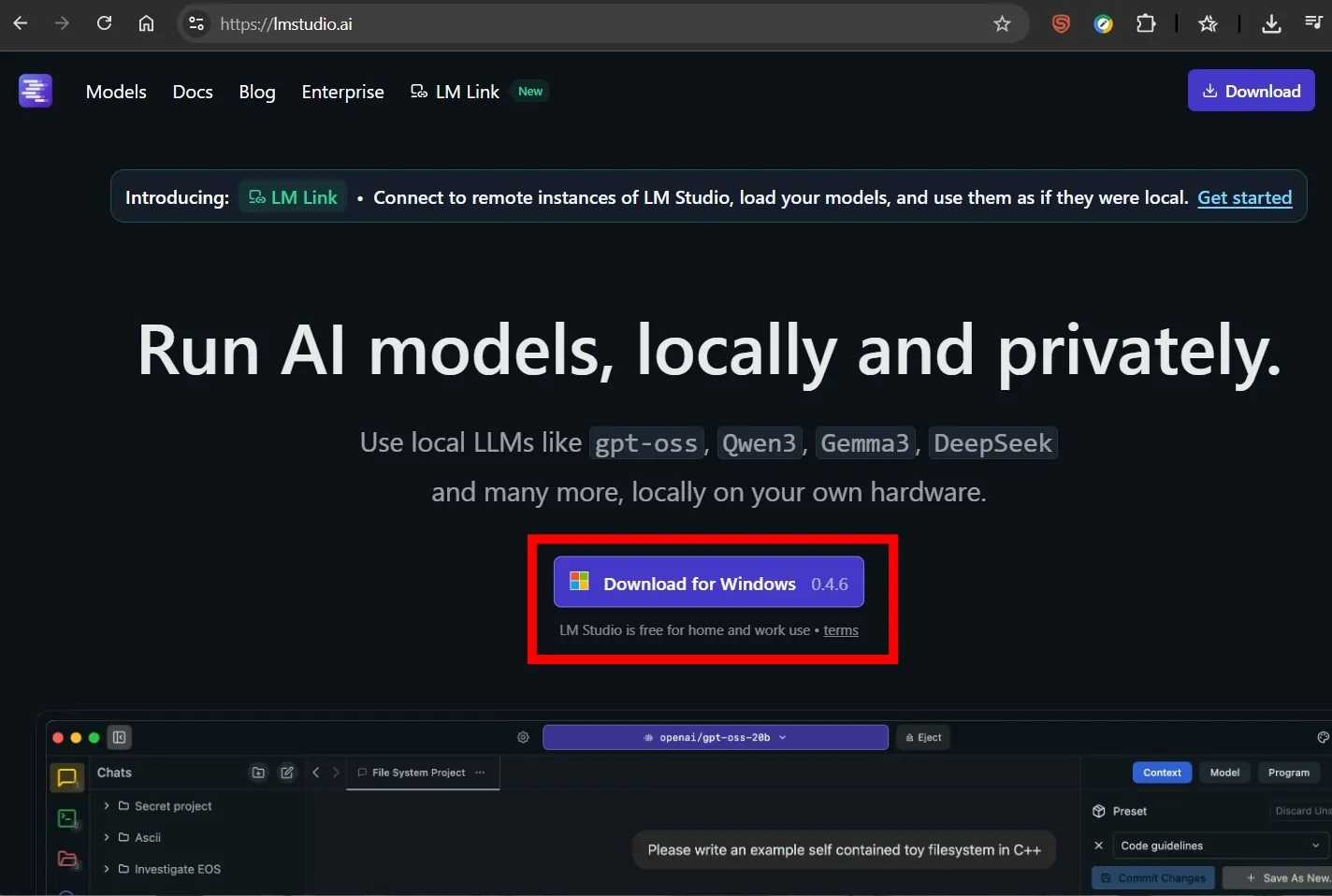 Download LM Studio by clicking the ‘Download for Windows’ and run it
Once downloaded, go to your downloads folder and run the installer.
When You run LM Studio, you can choose the model that you can chat with. I suggest choosing the model with ‘Tool’ capabilities. Look for the ‘Hammer’ icon next to the model, and also check and test its instruction following capabilities.
For my use case, I selected Qwen3 4B Instruct 2507, with GGUF file size of 2.50 GB. I could run larger model on my PC, but Qwen3 4B provides me with good balance between output and speed. Make sure you leave enough room for other programs like Docker Desktop as well.
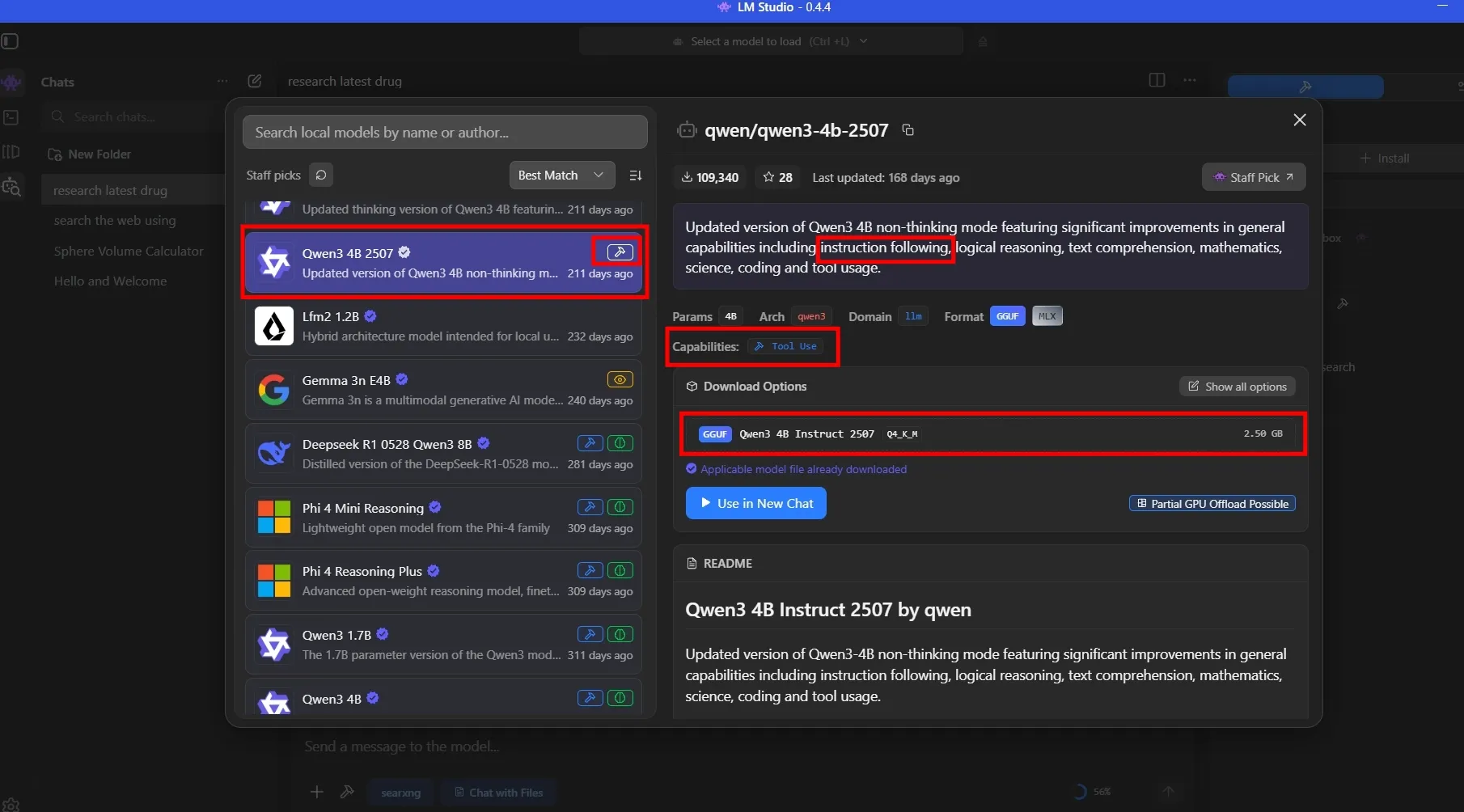 Download llm model that suits your need and your PC spec.
LM Studio user interface is quite straightforward and easy to use. Now you can chat freely with your local llm without worrying about privacy!
Next step we will add websearch capabilities to our llm model.
Step 2. Hosting SearXNG via Docker
- Install Docker Desktop to isolate the search engine.
You can download Docker Desktop, install it, then run the program and leave it running in the background.
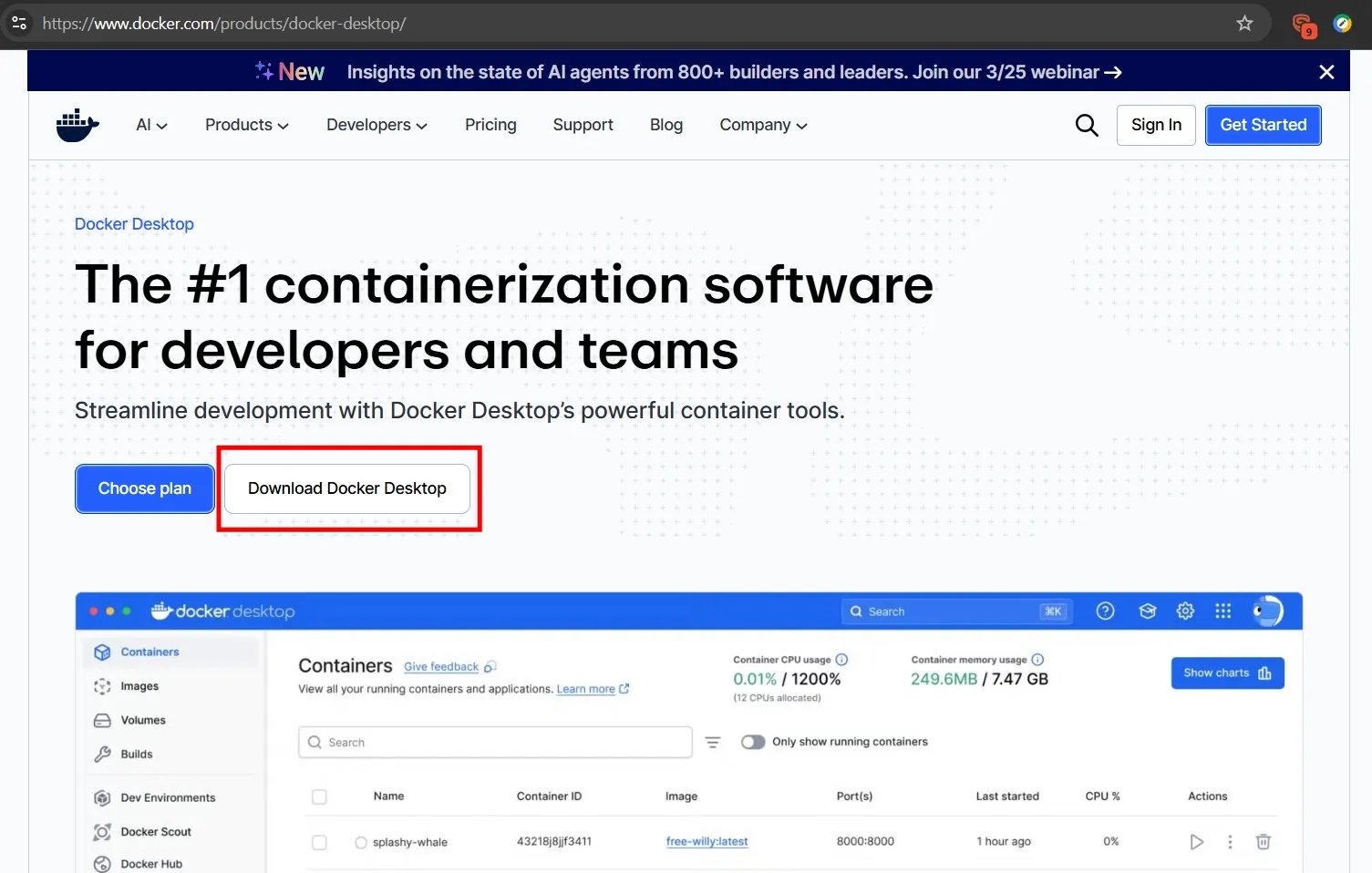 Download and install Docker Desktop for Windows AMD64.
Verify that docker-compose.exe is located in C:\Program Files\Docker\Docker\resources\bin\ folder after install.
Run this command in an Administrator PowerShell window to permanently add the directory to your system path:
Powershell
[Environment]::SetEnvironmentVariable("Path", $env:Path + ";C:\Program Files\Docker\Docker\resources\bin", [EnvironmentVariableTarget]::Machine)Verify your docker setup with the command below. You should see a version number for your docker.
Powershell
docker compose versionIf you see an error, you may need to restart powershell as it might not recognize the docker environment path yet.
- Create the project folder
From File Explorer, create new folder in C:\searxng-local and another subfolder C:\searxng-local\searxng
- Create Configuration File
Use any Text editor, create a settings.yml inside the searxng-local\searxng folder, then paste the following configuration into it. This is required to allow LM Studio to read the results via MCP.
Don’t forget to change the secret_key in the file!
settings.yml
# Basic SearXNG settings
use_default_settings: true

server:
  port: 8080
  bind_address: "0.0.0.0"
  secret_key: "change_this_to_a_random_string" # Change this!

search:
  formats:
    - html
- json- Create the Docker Compose File
In your main \searxng-local\ folder, create a file named docker-compose.yml, to define the container. then copy and paste this:
docker-compose.yml
services:
  searxng:
    image: searxng/searxng:latest
    container_name: searxng
    restart: always
    ports:
      - "8080:8080" # Map host port 8080 to container port 8080
    volumes:
      - ./searxng:/etc/searxng # Mount your local settings folder
    cap_drop:
      - ALL
    cap_add:
      - CHOWN
      - SETGID
      - SETUID
    logging:
      driver: "json-file"
      options:
        max-size: "1m"
        max-file: "1"
Mapped host port 8080 to container port 8080. Set restart: always to ensure it starts after a PC reboot.
- Launch SearXNG
Then open Windows powershell or terminal, navigate to your \searxng-local\ folder and do the following:
Powershell
docker compose up -dOpen your browser and go to http://localhost:8080. You should see the SearXNG search bar
Verify the API is working by visiting http://localhost:8080/search?q=test&format=json. If you see a wall of code/text, it’s working.
Step 3: Preparing the Windows Host (Node.js)
LM Studio requires Node.js to run the server via npx (Node Package Execute), to bridge it with the Docker container.
- Installation: Downloaded and installed Node.js (LTS version) from nodejs.org. Make sure to download the Windows Installer and not the Docker version.
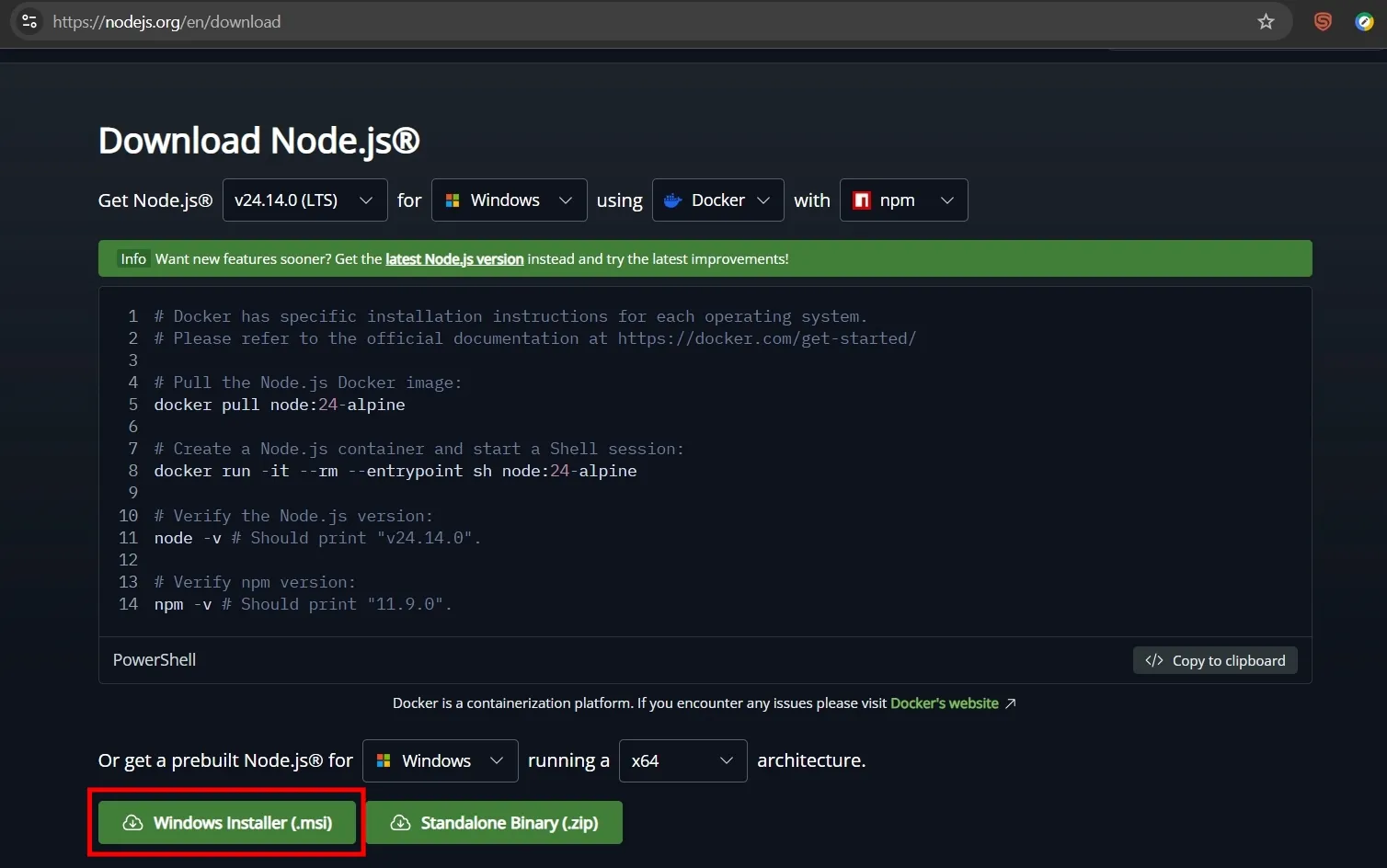 Download node.js Windows Installer (.msi) and install it.
- Environment Path: Ensured C:\Program Files\nodejs\ was added to the System Environment Variables (PATH) so Windows recognizes the node and npx commands. You may need to restart your PC for it to take effect.
Powershell
[Environment]::SetEnvironmentVariable("Path", $env:Path + ";C:\Program Files\nodejs\", [EnvironmentVariableTarget]::Machine)Verify your install with node -v command, it should return the version of your node.js.
Powershell
node -v- Verify that your PC can see the searxng package by running this command in Powershell:
Powershell
npx -y @modelcontextprotocol/server-searxngIf it asks to install: Press Y. If it starts and just sits there with a blinking cursor: It worked! You can close the window and LM Studio will now be able to run it too
If you run into script error or Execution Policy error. It could be that Windows blocks scripts by default, you need to run this in Administrator PowerShell:
Powershell
Set-ExecutionPolicy -ExecutionPolicy RemoteSigned -Scope LocalMachineWhen prompted, type A (Yes to All) and hit Enter.
Once it works, let’s go to LM Studio and setup MCP server.
Step 4: Configuring MCP in LM Studio
-
Open Config: In LM Studio, navigate to Settings > MCP > Edit mcp.json.
-
Server Definition: Add the following block:
mcp.json
{
  "mcpServers": {
    "searxng": {
      "command": "C:\\Program Files\\nodejs\\npx.cmd",
      "args": [
        "-y",
        "mcp-searxng"
      ],
      "env": {
        "SEARXNG_URL": "http://localhost:8080"
      }
    }
  }
}
Save the file. LM Studio should immediately detect the change. You will see a “searxng” entry appear in the MCP sidebar. Check the status of your self-hosted mcp-searxng. It should be green.
If you run into an error, check if you install node.js npx at a different directory, make sure you change the command in Server Definition accordingly.
Step 5: Activation & Testing
-
The “Green Light”: In LM Studio’s MCP tab, toggle the server on. A green status indicates the bridge found both npx and the Docker container.
-
Tool Selection: In the Chat interface, select a model with Tool Support (e.g., Qwen3) and ensured the web_search (or searxng) tool was toggled ON.
-
Verified the setup by asking: “Search for the latest SpaceX news using websearch tool.”. Your llm model should follow the instruction and use searxng web_search tool to connect and retrieve latest info! If prompted for permission, Tick both ‘Always allow’ boxes and click ‘Proceed’ to continue.
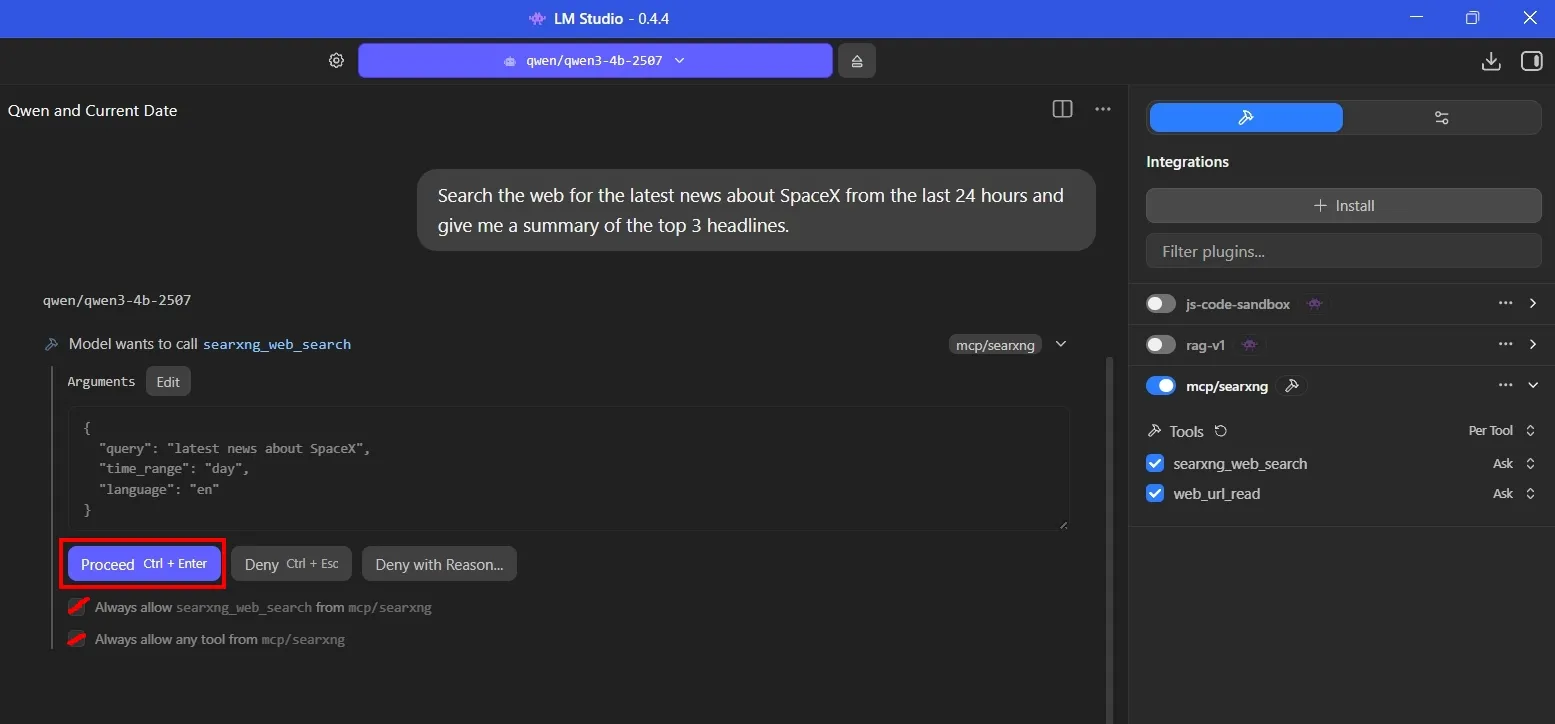 Always allow searxng_web_search and any tool from mcp/searxng.
Final Thoughts
Having your llm model connect to the outside World with websearch tools really makes chatting with it more refreshing! It’s also beneficial to my news sentiment analysis workflow as it can better analyse current events as you can see below:
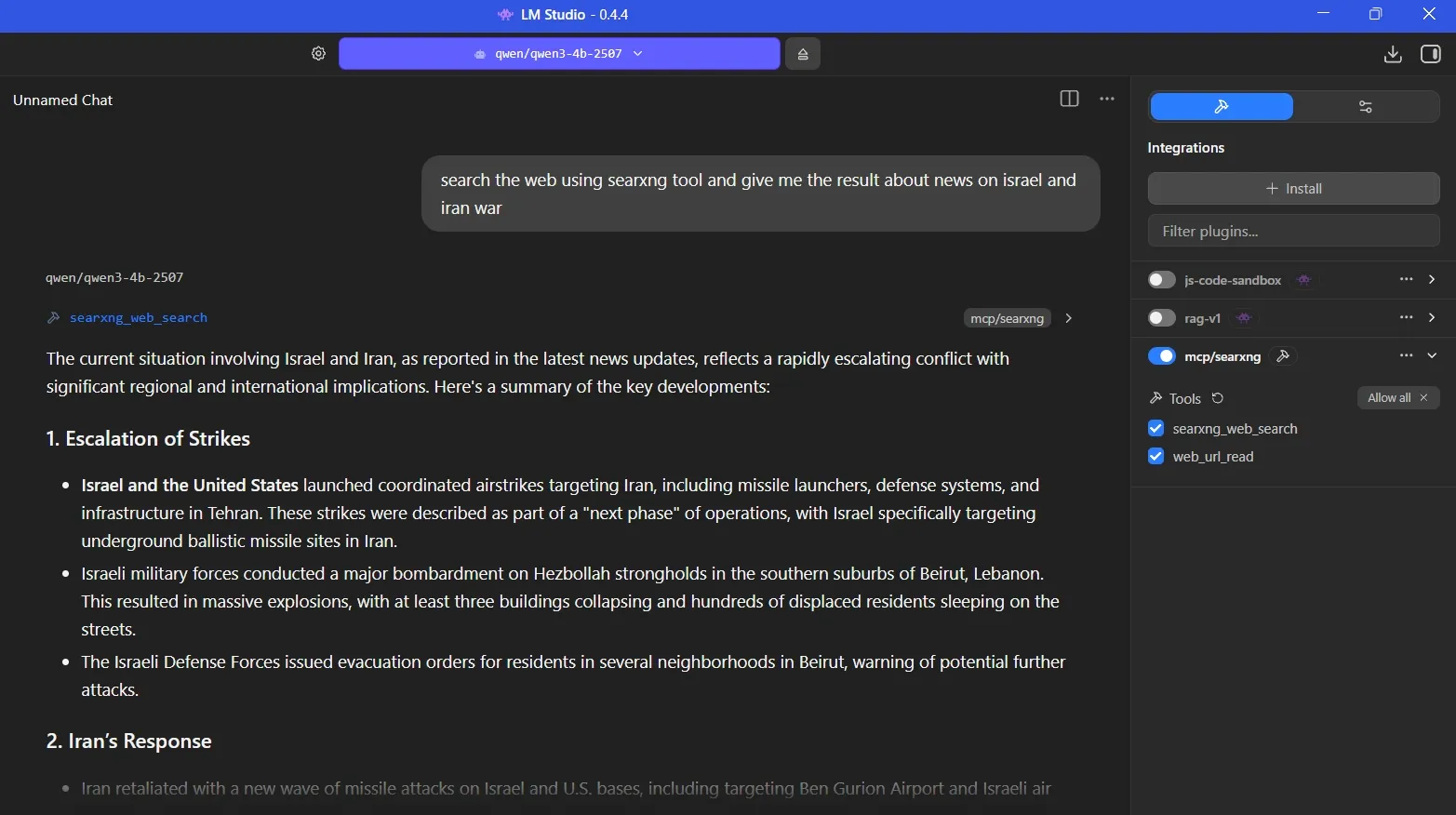 Example of how llm searches and analyse current events
Update your local search engine every few months by going to your \searxng-local\ folder and run the command below to get the latest search engines and security fixes.
Powershell
docker compose pull
docker compose up -d
If you run into any problem or errors along the way, don’t be discourage. Learning is all about trial-and-error!
Developer Tip
Besides using SearXNG as tool for your local llm model in LM Studio, you can also access it from your python script!
you use the requests library to send a GET request to the /search endpoint with the format=json parameter.
script
import requests

# Your local SearXNG address
SEARXNG_URL = "http://localhost:8080/search"

def search_searxng(query):
    params = {
        'q': query,
        'format': 'json',
        'language': 'en-US'
    }

    try:
        response = requests.get(SEARXNG_URL, params=params)
        response.raise_for_status() # Check for errors

        data = response.json()

        # Print the first 3 results
        for result in data.get('results', [])[:3]:
            print(f"Title: {result.get('title')}")
            print(f"URL: {result.get('url')}\n")

    except Exception as e:
        print(f"Error: {e}")

# Test the search
search_searxng("latest SpaceX news")
What’s Next
Beyond SearXNG, you can integrate a vast array of Model Context Protocol (MCP) servers to give your local models access to your files, databases, and other web services. These servers act as “plugins” that your AI can use as tools.
- Check back for more tools integration later, so stay-tuned!
🔗 Connect
I’m building Prevalis Strategies as a technical + strategic consulting venture. Follow the journey, learn with me, or drop suggestions and questions!
Domain: https://prevalis.ai
Email: [info@prevalis.ai]
Built & maintained by: prevalis.ai ✨