
Local LLM on Macbook Air - Intel i5 & 4GB RAM
I recently bought a new Macbook M4 and decided to use my old Macbook Air to run local and private LLM instead of leaving it in the cabinet unused!
Background on the hardware:
In order to do that, Let’s check the current state of my old Mac. It has Dual-core Intel i5 cpu with 4GB DDR3 RAM, with only Intel HD Graphics 5000. Very weak system compared to latest model. However, its macOS Big Sur just received a security update to version 11.7.11 just this Febuary 2026! Despite its age, the system still functions well as a backup notebook when I need it.
My setup:
With the above spec, my options are pretty limited and GUI interface like Open WebUI or LM Studio is out of the question. I decided to go with llama.cpp cli approach, based on what I’ve researched. It is an open-source C/C++ library and inference engine that allows users to run large language models (LLMs) locally and efficiently on consumer hardware, including standard CPUs, GPUs, and Apple Silicon. It utilizes advanced quantization techniques (such as GGUF format) which compress model sizes and reduce memory requirements significantly, with minimal impact on performance. This makes it possible to run large models on devices with limited memory, perfect for my case!
So here are the steps I followed to get my Local LLM up and running:
Step-by-step instructions:
- Install Developer Tools:
bash
# Open Terminal and install developer tools
xcode-select --install
if you run into problem installing xcode, use the command below to remove the corrupted installation, then proceed with the install again.
bash
# Remove corrupted installation
sudo rm -rf /library/developer\commandlinetools

# Verify the installation with
xcode-select -p
It should return: /Library/Developer/CommandLineTools.
- Download and Build llama.cpp for Intel i5
Download llama.cpp as zip file from GitHub repository. https://github.com/ggml-org/llama.cpp
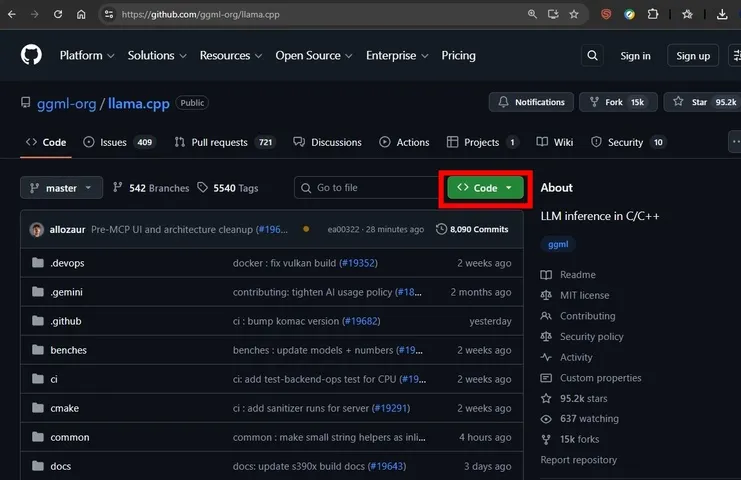 Download llama.cpp by clicking the green CODE button and download ZIP
Once downloaded, go to your downloads folder in terminal and unzip it.
bash
cd ~/Downloads
unzip llama.cpp-master.zip
cd llama.cpp-master
Now let’s proceed with compiling the LLM engine.
llama.cpp recently shifted its primary build system to CMake. On an older system like Big Sur, we need to make sure CMake is actually installed first.
bash
# Run this command to check for CMake
cmake --version
If it says “command not found”: You need to install it. Visit CMake.org and download the macOS Binary DMG from CMake.org,
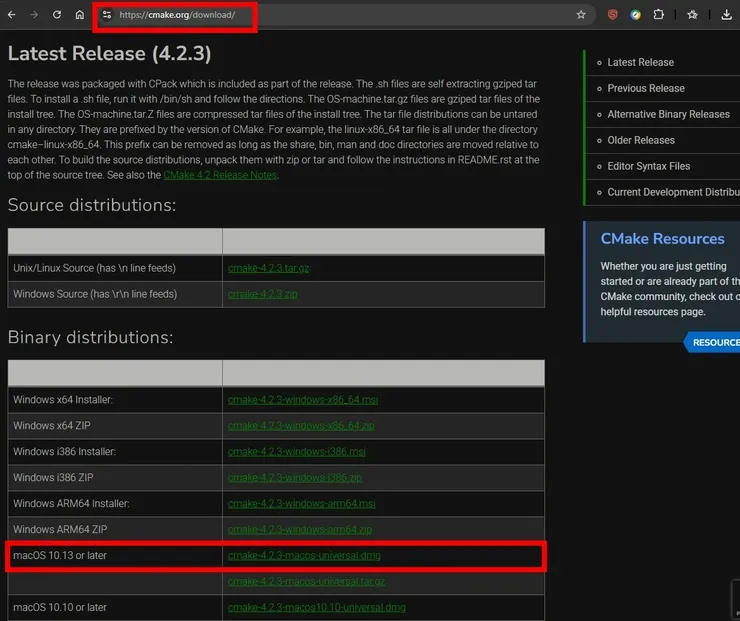 Download CMake dmg file. Choose macOS 10.13 or later
Once the file is download, double-click the dmg file to install it, and then run the command below to add it to your path.
bash
sudo "/Applications/CMake.app/Contents/bin/cmake-gui" --installBuild with CMake (Optimized for Intel i5) by running these commands below inside your llama.cpp-master folder:
bash
# Create a build directory:
mkdir build
cd build

# Config the build
cmake .. -DGGML_METAL=OFF -DGGML_AVX=ON -DGGML_AVX2=ON -DGGML_ACCELERATE=OFF

# Compile your customized build
cmake --build . --config Release -j 1
the -j 1 argument forces it to use only one core at a time during compilation to save RAM. This process will take a while.
Once the llama.cpp build is finished, the executable file won’t be in the main folder; it will be inside build/bin/. To run it, go back to the main folder.
Next proceed to download the model file.
- Download and run the LLM model
For models, I wanted to test the smallest model and check the performance first. So I went with Qwen 0.5B parameter with 4-bit quantization and found it to be quite fast with ingestion and output. You can download and try the model with the link below:
https://huggingface.co/bakongi/Qwen-0.5B_Instruct_RuAlpaca
After testing a few models, I’ve found that the sweet spot for my old Macbook Air i5 is with Qwen2.5, 1.5B parameters. The file size is 1.07GB which is almost the max limit of what my Mac can handle. Below is the link I downloaded it from.
https://huggingface.co/Qwen/Qwen2.5-1.5B-Instruct-GGUF
You can try other models as well.
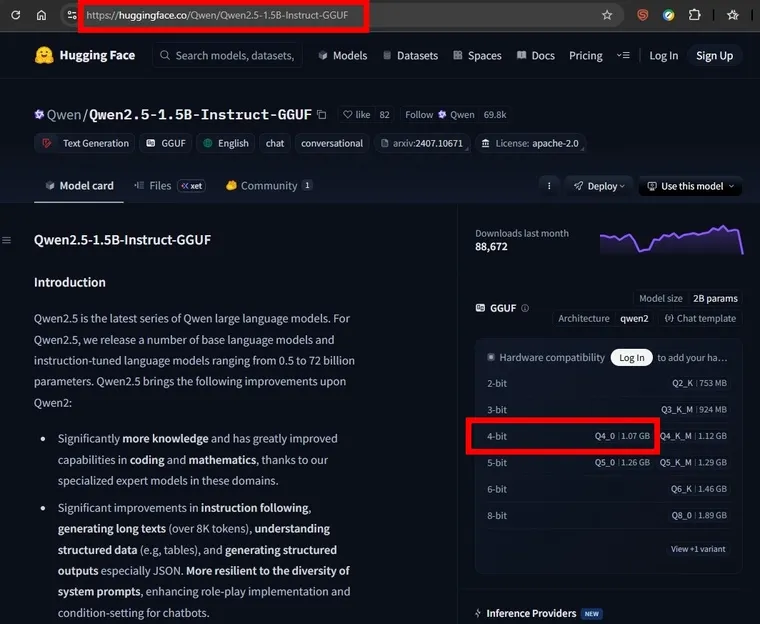 Download LLM model from huggingface. The 4-bit model is already 1.07GB!
Once the model is downloaded, run the command below to start your locall LLM in conversation mode.
bash
cd ..
./build/bin/llama-cli -m models/qwen2.5-1.5b-instruct-q4_k_m.gguf -n 256 -t 2 --color -i -cnv
If you have system prompt for the LLM, you can add the content to a file such as system.md and run the command:
bash
./build/bin/llama-cli -m models/qwen2.5-1.5b-instruct-q4_k_m.gguf -n 256 -t 2 --color -i -cnv --file system.mdIn case the model crashes on your low-memory hardware, you can use the -c argument to lower LLM short-term memory (context). Using -c 2048 will cap the context at 2048 tokens. Higher context uses significantly more memory!
bash
./build/bin/llama-cli -m models/qwen2.5-1.5b-instruct-q4_k_m.gguf -n 256 -t 2 --color on -cnv -c 2048- Test and have fun with your local LLM!
If you followed the instruction, your terminal should now run llama.cpp with the model loaded, then give you a prompt for LLM conversation ! Its reply prompt will include ‘Ingestion’ speed (Prompt: xx t/s) measured in tokens per second (t/s), and ‘Generation’ or output speed (Generation: xx t/s). With my setup, I can achieve around 22-24 tokens/second for ingestion and around 10-11 tokens/second for output generation. Not bad for such an old Mac!
Final Thoughts
For the ultimate convenience, you can use macOS Automator to create an application which will run script to automatically open terminal and run your model for you.
Just follow the instructions below:
-
Search and run Automator from application folder
-
Choose ‘File’ -> ‘New’ -> Then choose ‘Application’ type.
-
From the search bar, find ‘Run AppleScript’.
-
Copy and paste the script below into the input text box.
on run {input, parameters}
    tell application "Terminal"
        activate
        do script "cd ~/Downloads/llama.cpp-master && ./build/bin/llama-cli -m models/qwen2.5-1.5b-instruct-q4_k_m.gguf -n 256 -t 2 --color on -cnv"
    end tell
end run-
Click ‘Save’ and save the script to ‘Application’ folder.
-
Open your ‘Application’ folder, and you will see your App. Click to open!
And that’s it! Have fun testing different models and fine-tuning your local and private LLM !
What’s Next
- Check back for more later, so stay-tuned!
🔗 Connect
I’m building Prevalis Strategies as a technical + strategic consulting venture. Follow the journey, learn with me, or drop suggestions or questions!
Domain: https://prevalis.ai
Email: [info@prevalis.ai]
Built & maintained by: prevalis.ai ✨