Running Python in Docker on Synology NAS
This is a tutorial on how to run your python3.13 script in Docker Container on Synology NAS.
Background on why I need this setup:
I needed to run a small scheduled python script for simple webscraping and I planned to run it on a paid VPS (Virtual Private Server). However, since this script doesn’t take up much CPU load, I decided to try running it on my Synology NAS instead. If it runs well, I won’t have to pay for VPS!
I wanted to isolate the environment on my Synology NAS. So this process involves creating a Docker image within a Docker Container with my script and Python dependencies, then running a container from that image.
I would also need an Internet access for my script, which is usually enabled by default in Docker containers on the Synology bridge network. However, I added a step to check your Docker Network Configuration to confirm this as well.
My current setup:
Currently I have a DS720+ Synology NAS which I bought several years ago. The unit comes with Intel Celeron J4125. I upgraded the RAM to 10GB and installed 2 WD Red 5.5TB Harddrive. It is currently running on DSM version 7.2.2 Update 5.
- Prerequisites: You need to be able to have the below prerequisites setup first.
- Container Manager installed on your Synology NAS DSM to manage Docker image.
- You can SSH as administrator into your Synology NAS from your PC Terminal.
- Make sure you have network connection by pinging 8.8.8.8 or 1.1.1.1 from your SSH terminal.
- Create a project directory on your NAS (/volume1/docker/project) and upload your python script there. You can do this via Synology DSM File Station GUI.
Step-by-step instructions:
- Check your Docker Network Configuration in dockerd.json (in /var/packages/ContainerManager/etc/). If the file is empty, do the following:
bash
# Get root access
sudo -i

# Navigate to the correct Docker configuration directory
cd /var/packages/ContainerManager/etc/

# Overwrite/create the config file with DNS entries
cat <<EOF > dockerd.json
{
  "dns": ["8.8.8.8", "1.1.1.1"]
}
EOF

# Exit root access
exit

# Restart the Container Manager service
sudo synopkg restart ContainerManager- Run Interactive Docker Container
Download the base ubuntu 22.04 (or other versions you need) from Synology DSM GUI
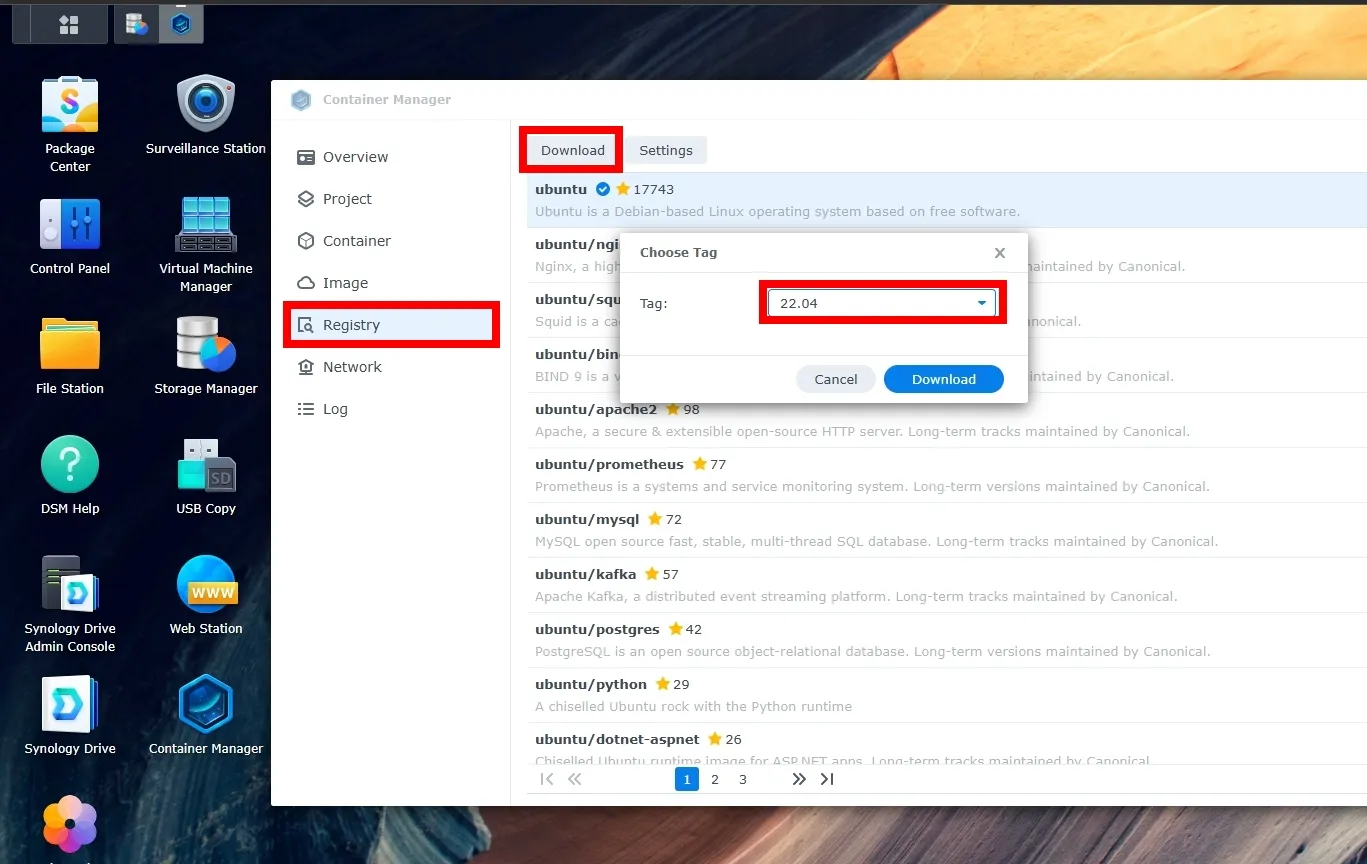 Download Docker Image from Container Manager
Then run the container using the command below
bash
# Run the container (use sudo here, as you are not root yet, or leave out sudo if you're already root)
sudo docker run -it --name ubuntu_session -v /volume1/docker/project1:/app ubuntu:22.04 bash- Install Python and other Dependencies inside the Container
Make sure to run all commands in this step inside the container (root@…:/# prompt). I need Python 3.13 for my script, but you can modify the command to suit your need.
bash
# Update system packages and install prerequisites. I use nano as my goto text editor.
apt update && apt install -y software-properties-common build-essential curl wget nano

# Add the repository for Python 3.13
add-apt-repository ppa:deadsnakes/ppa
apt update

# Install Python 3.13 or other repo as needed
apt install -y python3.13

# Install pip and setuptools using bootstrapping method
wget bootstrap.pypa.io && python3.13 get-pip.py && python3.13 -m pip install -U pip setuptools wheel

# Install project-specific dependencies (depending on your need)
python3.13 -m pip install requests beautifulsoup4 pandas

# Check to ensure correct version
python3.13 -m pip --version
The key here is to use get-pip to bootstrap pip for python3.13. This avoid the problem of ensurepip is unavailable for Python 3.13 in the deadsnakes build (ppa:deadsnakes/ppa). Also upgrad pip to latest version to avoid obsolete distutils dependency.
- Time to test my script!
bash
# Navigate to the script directory inside the container
cd /app

# Run the script to verify functionality
python3.13 my_script.py

# Exit the container session
exit
The prompt changed back to the Synology NAS prompt (yourname@…$).
- Commit all changes to a new Docker Image This will ensure that the final state of the container was saved as a new, reusable image on the Synology NAS.
bash
# Commit the running container as a new image name (use sudo from admin prompt). If already on root, omit the sudo
sudo docker commit ubuntu_session my-custom-python313-image
Open the Synology DSM web interface and go to Container Manager, then navigate to the Image tab. You will see my-custom-python313-image listed there.
 New Docker image in Synology NAS Container Manager
Final Thoughts
And that’s it! Your new Docker image is now ready to be deployed permanently via the Synology Container Manager GUI. Just select the image and click ‘Run’!
What’s Next
- Check back for more later, so stay-tuned!
🔗 Connect
I’m building Prevalis Strategies as a technical + strategic consulting venture. Follow the journey, learn with me, or drop suggestions or questions!
Domain: https://prevalis.ai
Email: [info@prevalis.ai]
Built & maintained by: prevalis.ai ✨